- Pemulihan data
- Pemulihan Data untuk PC
- Pemulihan Data untuk Android
- Pemulihan Data untuk iPhone/iPad
- Buka Kunci Untuk Android
- Buka kunci untuk iPhone/iPad
- Perbaikan Sistem Android
- Perbaikan Sistem iPhone/iPad

Diperbarui Oleh Cameron Pada 9 Mei 2023, 21:15
Pada kenyataannya, ada banyak penyebab umum hilangnya partisi, seperti penghapusan yang tidak disengaja, pemadaman listrik yang tidak terduga, serangan virus, bad sector, kerusakan data, dll. Untuk memulihkan partisi dan data yang terhapus atau hilang, Anda dapat menggunakan perangkat lunak pemulihan partisi, yang dapat membantu Anda menyelesaikan masalah dengan mudah dan cepat. Di antara banyak perangkat lunak pemulihan partisi, Anda dapat memilih berdasarkan faktor-faktor seperti kinerja, tingkat keberhasilan pemulihan, dan keamanan. Untuk menghemat waktu dan energi Anda, kami menawarkan 10 Perangkat Lunak Pemulihan Partisi Gratis yang Andal, yang darinya Anda dapat memilih alat yang paling sesuai dengan kebutuhan Anda untuk memulihkan partisi yang hilang secara gratis.
Jika Anda mencari alat untuk memulihkan partisi dan data yang terhapus atau hilang dengan mudah, jangan lewatkan 10 perangkat lunak pemulihan partisi gratis berikut ini.
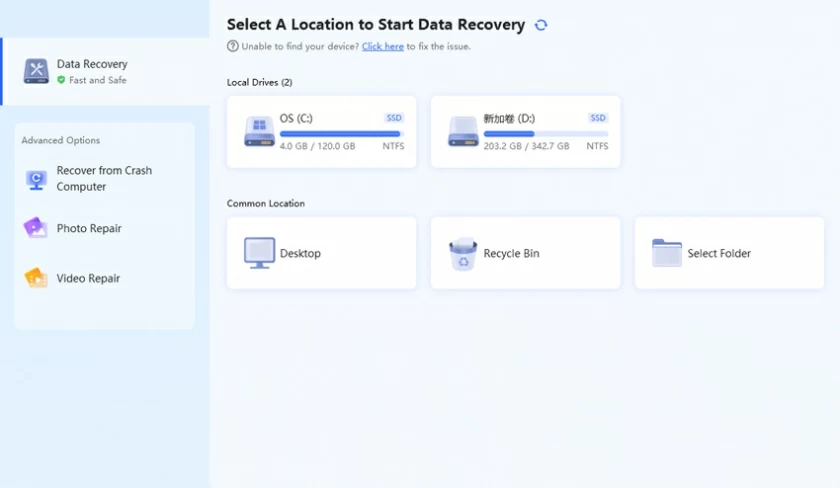
Setelah pertimbangan komprehensif dan perbandingan berulang kali, Geekersoft Data Recoveryadalah perangkat lunak pemulihan partisi gratis yang paling andal. Geekersoft Data Recovery dapat dengan cepat memulihkan partisi dan berbagai jenis file, seperti audio, video, foto, email, arsip, dan dokumen, jika ada partisi yang terhapus, hilang, tidak dapat diakses, dan RAW. Geekersoft Data Recovery juga telah dipilih sebagai "Pemimpin Perangkat Lunak Pemulihan Data" oleh G2, dengan teknologi paten yang dikembangkan secara independen, aman dan andal.
URL: https://www.geekersoft.com/geekersoft-data-recovery.html
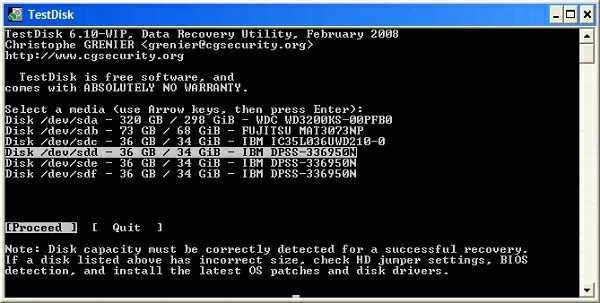
Mirip dengan perangkat lunak Geekersoft Data Recovery, TestDisk juga merupakan alat pemulihan data bagus yang memungkinkan pengguna memulihkan data dari partisi yang tidak dapat di-boot. TestDisk bersiap untuk pemulihan data selanjutnya dengan mengubah partisi yang tidak dapat di-boot menjadi partisi yang dapat di-boot. TestDisk tersedia untuk perangkat DOS, Windows, Linux, dan Mac. Baik itu PC atau laptop, TestDisk berjalan dengan sempurna dan merupakan solusi partisi dan pemulihan file gratis yang andal. TestDisk dapat membantu pengguna memulihkan dokumen, multimedia, video, audio, dan file lain yang hilang dari partisi. Namun, ini tidak mendukung pemulihan server atau data bisnis profesional dan penting.
URL: https://www.cgsecurity.org/wiki/TestDisk
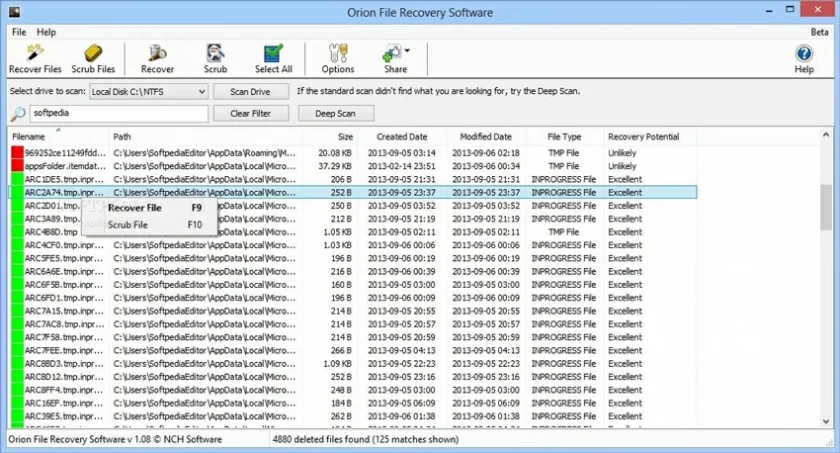
Perangkat Lunak Pemulihan File Orion juga merupakan alat yang dapat membantu pengguna memulihkan partisi dan data secara gratis. Itu dapat memindai partisi, hard drive, atau kartu penyimpanan untuk menemukan dan memulihkan data yang hilang. Ia bahkan dapat memulihkan file yang terhapus secara permanen, yang sangat praktis. Jika partisi di komputer Anda telah terhapus atau hilang, Anda dapat mencoba memulihkan data melalui perangkat lunak pemulihan file Orion.
URL: https://www.cgsecurity.org/wiki/TestDisk
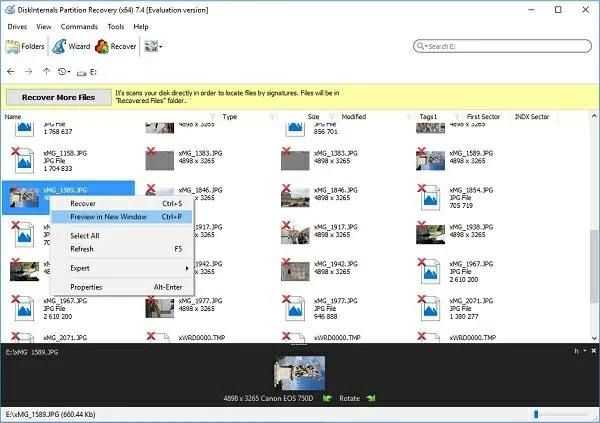
Alat pemulihan data gratis hebat lainnya adalah DiskInternals Partition Recovery, yang mengambil data yang hilang dari partisi yang terhapus dan rusak. DiskInternals ditujukan untuk komputer Windows dan Mac. Itu dapat memulihkan data dengan mengakses disk yang tidak dapat dibaca dalam mode pembaca. Namun penggunaan DiskInternals Unlimited hanya tersedia untuk versi berbayar.
URL: https://www.diskinternals.com/partition-recovery/
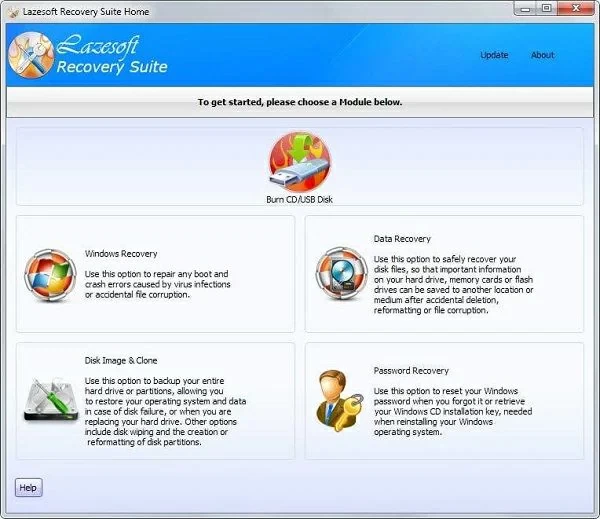
Anda juga dapat mendownload Lazesoft Recovery Suite secara gratis, yaitu software yang dapat memulihkan file yang terhapus dari PC Anda. Ini kompatibel dengan sistem seperti Windows 7, 8, dan 10, dan dapat memulihkan data dari drive yang tidak dapat diakses, flash drive, partisi yang tidak dapat dibaca, kartu SD, dan drive USB. Prasyarat Lazesoft Recovery Suite untuk memulihkan data adalah data yang hilang hanya dapat dipulihkan dari drive atau partisi yang rusak sebelum data yang terhapus atau hilang ditimpa oleh data baru. Jika Anda perlu memulihkan partisi atau data yang hilang, silakan coba Lazesoft Recovery Suite. Namun, Lazesoft Recovery Suite edisi Komersial dan Profesional memerlukan pembayaran.
URL: https://www.lazesoft.com/lazesoft-recovery-suite-free.html
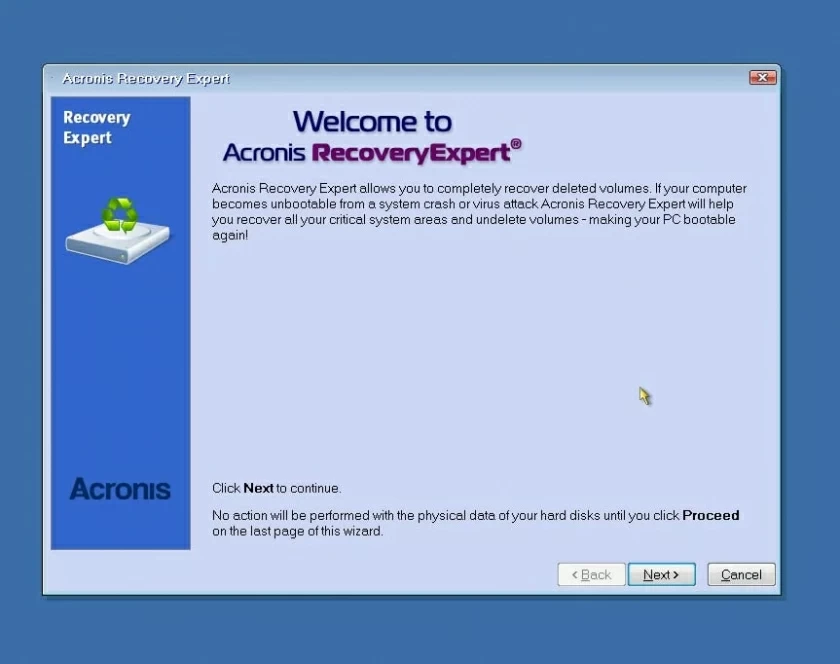
Acronis Recovery Expert Wizard juga familiar bagi banyak pengguna. Ini dapat membantu Anda memulihkan partisi yang hilang. Acronis Recovery Expert Wizard dapat dengan cepat mengambil partisi yang hilang yang disebabkan oleh penghapusan tidak disengaja, kerusakan data, bad sector, atau pemadaman listrik. Anda dapat memilih untuk memulihkan partisi secara manual atau otomatis, sangat ramah pengguna.
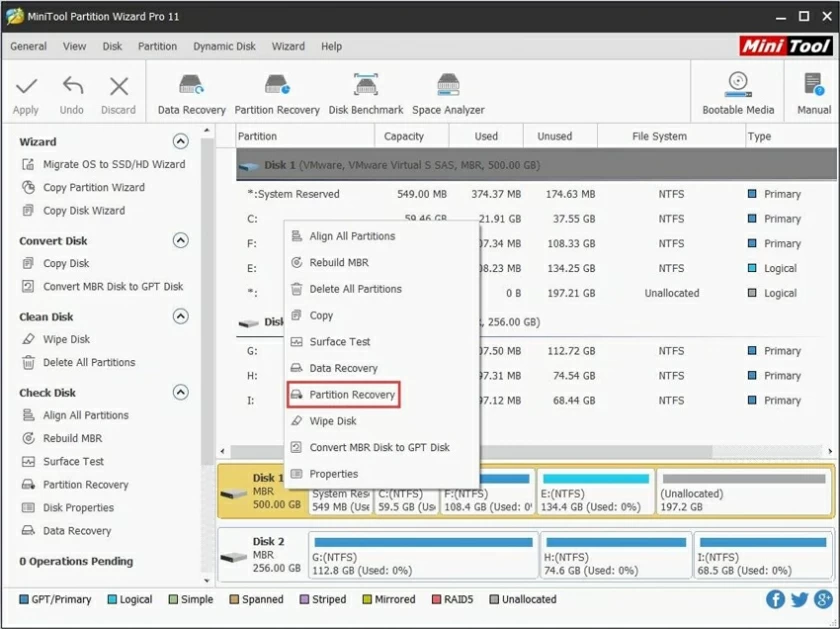
MiniTool Partition Recovery is also a very good partition recovery tool. It provides the function of recovering partitions lost due to error deletion, Windows update, virus attack, partition table damage, etc. MiniTool partition recovery can be performed through fast and deep scanning. In addition to recovering partitions and data from a PC, it also supports recovering lost partitions and data from other storage media.
URL: https://www.minitool.com/free-tools/minitool-partitionrecovery.html
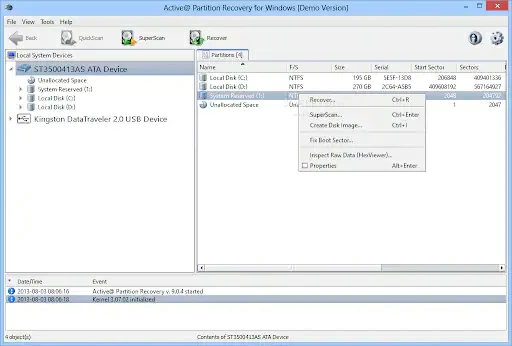
Active Partition Recovery is a data recovery software suitable for Windows, WinPE, Linux, and DOS computers. After scanning all partitions of a PC, Active Partition Recovery can recover deleted data that has not been overwritten. It provides fast scanning, super scanning, and last chance mode to help users scan and recover data. Free download for partition recovery on Windows 11, 10, 8, and 7. The commercial version of Active Partition Recovery has more advanced features and requires paid usage.
URL: https://www.easeus.com/data-recovery-software/
Disk Drill Partition Recoveryis a free partition recovery tool that is compatible with Windows and Mac, supporting the recovery of partitions and data lost due to various reasons. Disk Drill Partition Recovery supports almost all common file systems such as FAT, NTFS, exFAT, and EXT4. To easily recover lost data, try Disk Drill, which allows you to easily and effectively recover files from damaged or lost partitions.
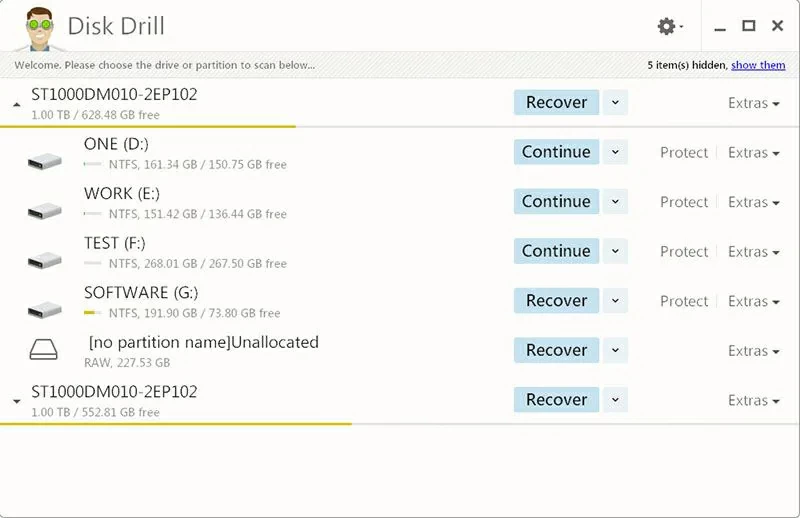
URL: https://www.cleverfiles.com/partition-data-recovery.html
Partition Find and Mount is another free partition recovery software worth sharing. It can help locate partitions and mount them onto the computer, so that lost partitions can be used as general-purpose disks or drive volumes. In addition, in the event of loss, coverage, or damage to the master boot record, Partition Find and Mount will come in handy. Partition Locating and Mounting are simple and easy to use, safe and reliable, and easy to recover lost or deleted partitions for free.
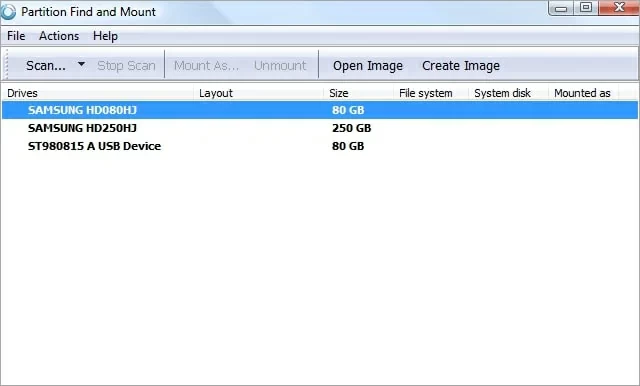
URL: http://findandmount.com/
If you do not want to recover lost partitions on a Windows 10 PC by installing third-party software, then using the diskpart.exe command-line utility to recover lost partitions is more suitable for you. In fact, DiskPart is a command-line utility in Windows PC that can manage disks, partitions, or volumes on computers running all operating system versions from Windows 2000 to 10. Specifically, users can use the DiskPart Command Prompt to perform disk partition operations, including creating, modifying, and deleting system disk partitions, and cleaning up data in internal/external hard drives, SD cards, and so on.
If you enter the wrong DiskPart command, resulting in the execution of the wrong command in the hard drive partition, or accidentally delete the partition, you need to cancel or cancel the DiskPart clean command to cancel the deletion of the partition. Take Windows 10 PC as an example, the specific steps are as follows:
Step 1 Right-click Start > Disk Management to check for missing partitions. If a partition has been lost or deleted, you will see disk space marked "unallocated."
Step 2 Run Command Prompt, enter Disk Part, and click Enter.
Step 3 Type the command "List Disks" and press Enter to view all storage devices on the system.
Step 4 Enter the command "Select Disk #" and press Enter. Note that # is replaced here with the number of the hard drive on which the lost partition needs to be recovered.
Step 5 Type: "Assign letter = H" and press Enter. Note that H is a randomly selected drive letter).
Step 6 Close the command prompt and see if you can access the missing partition.
If using diskpart.exe does not help you recover lost partitions on Windows, then we recommend using Geekersoft Data Recovery to recover lost or deleted partitions and data.
You may not be familiar with disk partitions, but you must have heard of computer C disk. When dividing a computer's hard drive into multiple parts, they are called partitions, or disk partitions. The computer's operating system manages the data in each partition separately. A disk partition is distinct from a drive, which represents a drive letter assigned to the partition. A partition is simply a logical separation from the entire hard drive.
Common causes of partition loss include accidental deletion, damage, error restore, improper partition size adjustment, partition table loss or physical damage, backtracking/sector, etc., as well as deletion of partitions of computer hard disks due to virus infection, computer system crash and unexpected system shutdown. All data present in the lost partition will be lost. In these cases, if you want to retrieve lost data, you need to retrieve the deleted partition. The free partition recovery software introduced in this article can help you achieve data recovery.
To recover lost or deleted partitions, you can use the help of partition recovery software. Partition recovery software is a solution specifically designed to recover lost or deleted partitions from computer hard drives. We know that partitions created separately on hard drives can be used to store and manage data in different regions. In addition, creating partitions can backup data in the event of system crashes or virus attacks. In case of accidental deletion, damage, error restore, improper partition size adjustment, partition table loss or physical damage, backtracking/sector, as well as virus infection, computer system crash and other reasons that result in partition loss, no longer accessible or erroneously deleted, partition recovery software is your most convenient and reliable solution. For example, Geekersoft Data Recovery can easily recover lost partitions and data stored in them, which may include Word, Excel, images, audio, video, and other data.
The above is the Top 10 Reliable Free Partition Recovery Softwares we have introduced to you. You can choose based on their respective performance, recovery success rate, security, etc. The Geekersoft Data Recovery interface is simple, easy to use, and has strong data recovery ability and fast speed. It supports the recovery of raw partitions and data of different file types that have been lost due to various reasons. You can also preview before restoring, providing targeted and efficient recovery. Geekersoft Data Recovery places great emphasis on data security, and you can use it with confidence. To perform partitioning and data recovery, Geekersoft Data Recovery is the first choice for millions of users.