- Pemulihan data
- Pemulihan Data untuk PC
- Pemulihan Data untuk Android
- Pemulihan Data untuk iPhone/iPad
- Buka Kunci Untuk Android
- Buka kunci untuk iPhone/iPad
- Perbaikan Sistem Android
- Perbaikan Sistem iPhone/iPad

Diperbarui Oleh Cameron Pada 18 April 2023, 18:47
Seperti diketahui, aplikasi konferensi video Zoom menyediakan kemampuan untuk merekam rapat. Namun fungsi ini hanya dapat digunakan oleh peserta jika penyelenggara konferensi memberikan izin. Jika penyelenggara menonaktifkan tombol 'Rekam' selama rapat, peserta tidak akan dapat merekam rapat menggunakan tombol 'Rekam'. Pada titik ini, jika Anda ingin melewati otorisasi tuan rumah dan menggunakan metode lain untuk merekam rapat Zoom, Anda perlu menggunakan perangkat lunak atau aplikasi perekam Zoom gratis untuk membantu Anda menyelesaikannya. Untuk membantu Anda menghemat waktu dan energi, setelah uji coba berulang kali dan perbandingan komprehensif, kami akan merekomendasikan perekam layar gratis konferensi Zoom terbaik untuk Anda. Mereka mendukung Anda untuk menggunakannya di komputer, ponsel cerdas, atau tablet, yang sangat nyaman.
Di antara banyak perangkat lunak konferensi video online, seperti Google Meet, Teams, Skype, dll., banyak pengguna memilih konferensi Zoom. Alasan utamanya adalah konferensi Zoom dirancang dengan antarmuka yang ramah pengguna, hasil konferensi yang terjamin, dan dukungan fungsi perekaman. Jika tuan rumah menonaktifkan tombol "Rekam" selama rapat, Anda perlu menggunakan aplikasi pihak ketiga untuk merekam. Di bawah ini kami akan memperkenalkan Anda pada 7 solusi perekaman dan pengeditan konferensi video online terpadu. Anda dapat memilih salah satu yang paling sesuai dari 7 perekam konferensi Zoom terbaik.
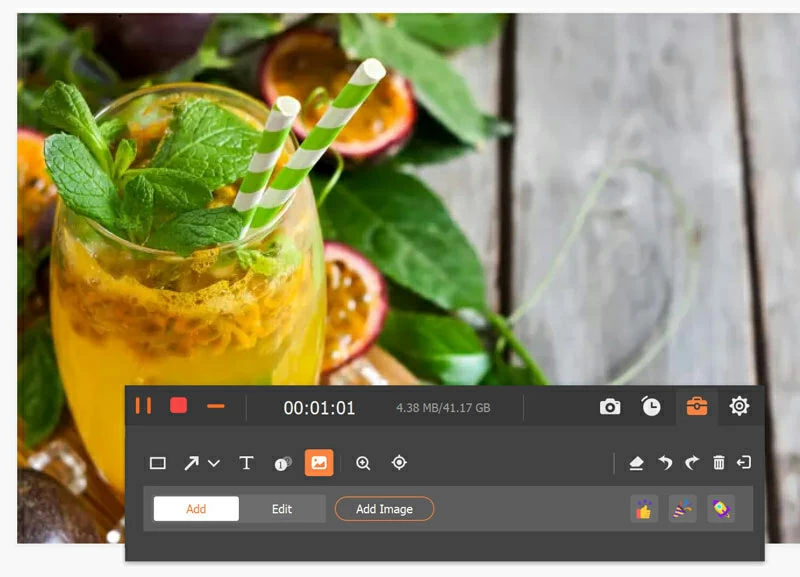
Screen Recoder adalah solusi perekaman dan pengeditan video terpadu yang berjalan sempurna di Windows dan Mac. Ini adalah perekam layar yang sangat dipuji oleh pengguna. Selain perekam video inti yang terintegrasi, perangkat dan efektor pengeditan video yang canggih juga mendukung pengguna untuk memoles dan memproses rekaman video, menambahkan efek dan anotasi luar biasa pada rekaman video konferensi Zoom.
Perekam Layar mendukung perekaman layar, audio, dan webcam secara bersamaan, sehingga memudahkan pengguna untuk merekam rapat Zoom. Jika Anda adalah tuan rumah konferensi Zoom, Anda dapat merekam dan mengeluarkan video konferensi berkualitas tinggi melalui Perekam Layar. Jika Anda adalah peserta konferensi Zoom, Anda dapat menggunakan Perekam Layar untuk merekam layar dan audio konferensi Zoom tanpa izin penyelenggara.
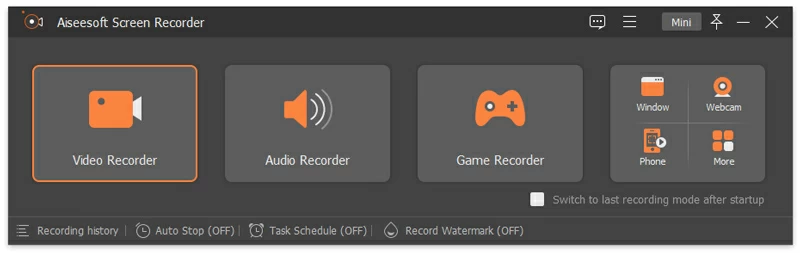
Screen Recoder memiliki antarmuka bersih yang memungkinkan pemula sekalipun untuk merekam rapat Zoom dengan cepat dan efisien hanya dengan beberapa klik tanpa pengalaman apa pun. Screen Recoder memungkinkan pengguna untuk menyesuaikan kualitas dan parameter video yang direkam, seperti memilih frame rate video (hingga 120 fps), ukuran output, dan bahkan format file untuk menyimpan konten yang direkam. Sangat mudah untuk mengunduh, menginstal, dan meluncurkan Screen Recoder di komputer Anda, lalu ikuti instruksi perangkat lunak untuk merekam rapat Zoom.
Jika Anda menggunakan PC Windows, Anda dapat langsung menggunakan Game Bar Windows 10 untuk merekam rapat Zoom tanpa menginstal aplikasi pihak ketiga. Game Bar adalah program bawaan Windows 10 untuk menangkap layar komputer. Meskipun Game Bar dirancang khusus untuk merekam video game, Anda juga dapat menggunakannya untuk merekam program lain yang Anda gunakan di PC. Langkah-langkah spesifik untuk merekam rapat Zoom dengan Game Bar adalah sebagai berikut: tahan tombol keyboard Windows dan G secara bersamaan, lalu klik tombol Rekam. Selanjutnya, buka jendela rapat Zoom, dan Game Bar akan secara otomatis merekam semua konten di layar komputer Anda selama seluruh periode rapat. Untuk merekam audio selama rapat, aktifkan opsi perekaman. Setelah rekaman rapat Zoom selesai, klik tombol "Berhenti Merekam" dan simpan file rekaman video ke folder aman.
Salah satu aplikasi termudah untuk merekam rapat Zoom di komputer Anda adalah Geekersoft Free Screen Recoder. Ini sangat kompatibel dengan sistem operasi Windows/macOS. Setelah memulai Geekersoft Free Screen Recoder, klik File > Screen Record untuk mulai merekam rapat Zoom. Anda dapat menyesuaikan parameter yang terkait dengan rekaman video, seperti merekam layar, audio, dan webcam secara bersamaan, mengaktifkan mikrofon, memilih kualitas video yang ingin Anda rekam, dan menentukan tempat menyimpan file. Antarmuka Geekersoft Free Screen Recoder sederhana dan mudah digunakan, yang diterima dengan baik oleh banyak pengguna. Cukup klik tombol Rekam untuk mulai merekam rapat Zoom yang sedang berlangsung di layar. Setelah rapat berakhir, Anda dapat melihat pratinjau video yang direkam dengan mengklik Berhenti Merekam. Namun, Geekersoft Free Screen Recoder hanya menawarkan kemampuan perekaman layar yang terbatas, seperti ketidakmampuan menentukan area layar yang akan diambil atau mengatur kecepatan bingkai video yang akan diambil.
Perekam Layar Gratis Geekersoft berjalan dengan lancar di aplikasi yang paling menuntut, menjadikannya sangat andal selama rapat Zoom.
VLC bekerja dengan sempurna di Windows dan macOS dan merupakan salah satu pemutar media terbaik di luar sana. Ini mendukung pemutaran file video dan audio dalam format apa pun. Selain fitur pemutar media sumber terbuka, ia hadir dengan alat tangkapan layar untuk membantu pengguna merekam semua yang ada di layar. Jadi, untuk merekam rapat Zoom bisa menggunakan VLC. Secara relatif, penggunaan VLC akan lebih kompleks dan memerlukan pengetahuan teknis tertentu. Langkah spesifiknya adalah sebagai berikut: Setelah memulai VCL, klik "Open Capture Device" > "Media" > "Capture Mode" > "Desktop". VLC juga mendukung pengaturan frame rate yang diinginkan. Anda dapat mengubah format keluaran video dengan membuka Putar > Konversi > Profil, lalu pilih tempat untuk menyimpan rekaman video di hard drive Anda. Terakhir, klik tombol Start untuk merekam layar, dan klik Stop ketika rapat Zoom selesai.
OBS adalah perangkat lunak perekam layar yang mudah digunakan dan merupakan pilihan bagus untuk merekam rapat Zoom. Ini kompatibel dengan sistem seperti macOS, Linux, dan Windows, menjadikannya perekam layar dengan banyak pengguna. Setelah memulai OBS, klik Sumber>+>Tangkapan Jendela>Buat/Pilih Sumber, dan setelah memberi nama file yang direkam, klik tombol OK untuk mulai merekam. Selain itu, Anda juga dapat menyesuaikan parameter seperti "Jendela Properti". OBS mendukung perekaman audio desktop dan suara mikrofon secara bersamaan, atau hanya memilih satu opsi untuk merekam. Setelah menyelesaikan pengaturan audio, klik Kontrol > Mulai Merekam untuk merekam rapat Zoom.
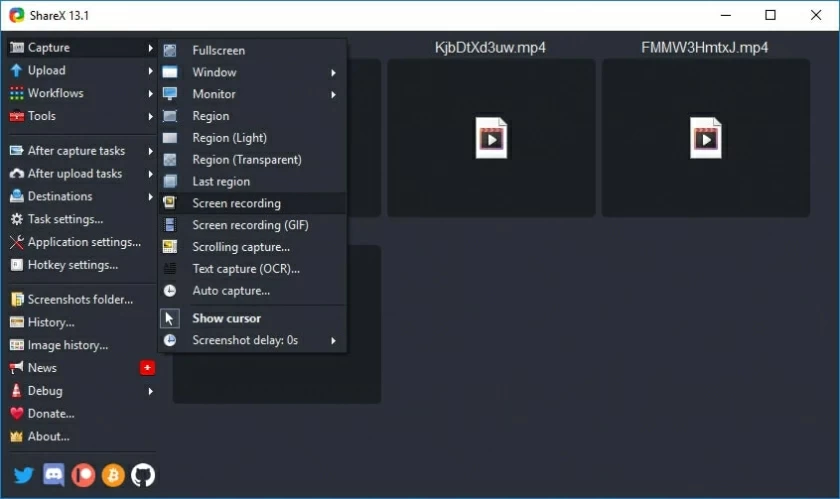
Untuk merekam rapat Zoom, Anda juga dapat memilih ShareX. Ini adalah tangkapan layar dan file shareware yang mendukung perekaman area layar tertentu. Setelah perekaman, ia juga menyediakan berbagai opsi pasca pengambilan bagi pengguna untuk memproses file rekaman. Sebelum merekam rapat Zoom, cukup pilih mode perekaman, sesuaikan pengaturan video dan audio, lalu klik tombol Perekaman.
Perekam layar ShareX menyediakan alat anotasi multifungsi yang memungkinkan pengguna menyorot momen dan konten penting tertentu selama rapat Zoom. ShareX mendukung pengunggahan file rekaman video ke platform media sosial mainstream lainnya seperti YouTube, Dropbox, Google Drive, dll. Selain itu, Anda juga dapat mengirim video yang direkam oleh ShareX melalui email. Sebelum merekam rapat Zoom, kami menyarankan Anda membiasakan diri dengan langkah-langkah pengoperasian ShareX sehingga Anda dapat menyelesaikan pekerjaan perekaman rapat dengan lebih baik.
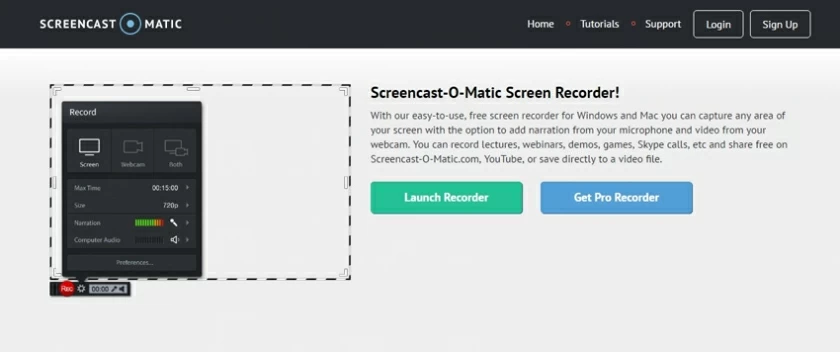
Screencast-O-Matic juga merupakan perangkat lunak tangkapan layar yang luar biasa untuk merekam rapat Zoom. Ini mendukung perekaman webcam dan layar komputer secara bersamaan, dan selain itu, Anda juga dapat menggunakan mikrofon eksternal untuk merekam audio. Screencast o Matic mendukung perekaman seluruh layar dan area layar tertentu, sehingga sangat ramah pengguna.
Screencast-o-Matic has a powerful material library where you can directly use the materials to add music or subtitles to your recordings. In addition, you can also use it to edit recorded videos, such as deleting the beginning and end. It can meet the needs of only sharing some videos or recordings with others. However, the upgraded version of Screencast-o-Matic only supports uploading videos to YouTube, using annotation tools, accessing automatic subtitles, or creating picture in picture effects.
The above are the 7 best Zoom Recorders that we have introduced for Mac and PC, and you can choose the best one according to your own needs. Overall, however, Screen Recoder tops the list in all areas, from interface Settings, screen recording, editing and sharing capabilities, user experience, to customer reviews for the G2 platform.
If you are looking for a solution to record Zoom meetings on your mobile device, don't miss this section. Although Zoom's paid plan provides the ability to record meetings, in order to record Zoom meetings for free, you need to use a third-party screen recording application to complete it.
If your device is an iOS 12, Android 11, or later operating system, you will find that the system has provided you with a built-in screen recording tool for recording screens. However, if you want to record Zoom meetings on some early versions of devices, the third-party screen recording application recommended in this article is also available for you to choose from and use for free. Let's take a look at the three best free iOS and Android Free Screen Recorders available for recording Zoom meetings.
To help users capture all activities on the device screen, iPhone and iPad provide users with a built-in screen recording application. To record Zoom meetings on iPhone and iPad, simply go to the control center after the meeting starts and long press the screen recording button to start capturing the screen.
Reminder: Before using the iOS built-in screen recorder, you need to enable this screen recording function in the settings menu. Before starting recording the screen, please ensure that your device has sufficient storage space to fully record the entire Zoom meeting. After screen recording starts, you can pause, continue, or stop recording at any time in the toolbar.
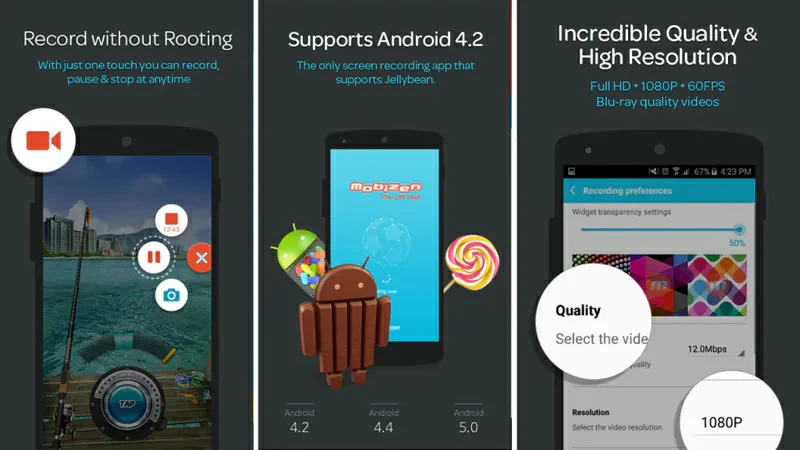
Mobizen is a free screen recorder suitable for Android devices. It can record screens at 1080p resolution and 60fps. Using Mobizen to record Zoom meetings is easy to operate. After starting Mobizen, start a new Zoom meeting, and then click on Mobizen's floating icon>"Record" to start recording. It allows users to store recorded videos on an external SD card without the hassle of running out of phone memory. However, during the use of Mobizen, advertisements may pop up. If you need to use all of its features, you will need to pay for the purchase.
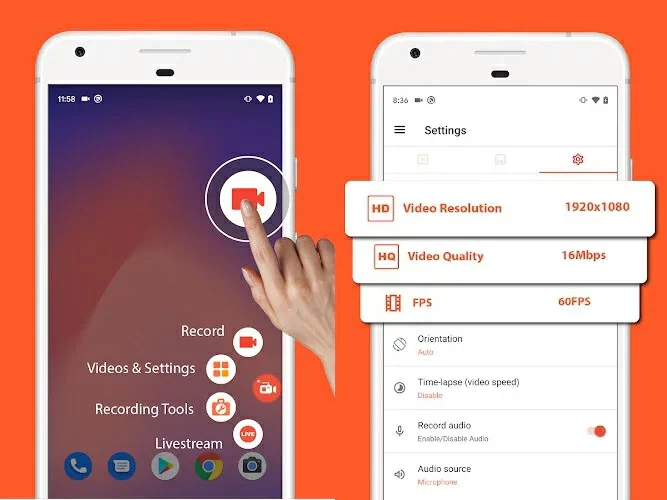
AZ Screen Video Recorder is another simple but powerful free screen video recorder for Android devices. It supports recording video at full HD resolution and has no limit on how long it can be recorded, so if you want to use it to record Zoom meetings, AZ screen recorder is a good choice. The AZ screen recorder captures both the screen and the front-facing camera lens, as well as system and external environment sounds. You just need to shake your phone to stop recording. In addition, AZ Screen Recorder provides powerful video editing tools that can quickly polish recorded videos before you share them with friends or colleagues, or publish them on other mainstream social media platforms such as YouTube, Dropbox, Google Drive, etc.
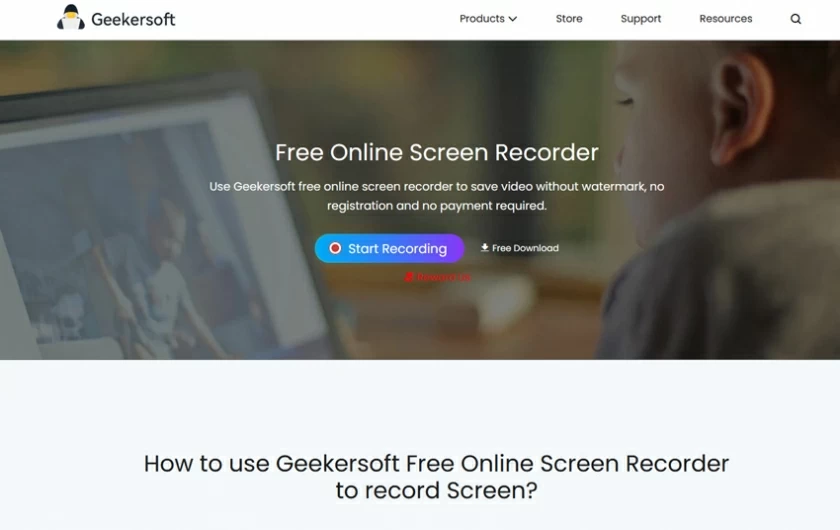
In addition to the screen recorder applications for iOS and Android, Mac and PC, you can also choose an online Zoom conference screen recorder without the need for download and installation, which is very convenient. The Geekersoft Free Online Screen Recorder is perfectly compatible with mainstream browsers such as Google Chrome, Mozilla, Firefox, Safari, Opera, Edge, etc. Open the Geekersoft Free Online Screen Recorder page through the browser to record Zoom meetings.
Among numerous online video recorders, Geekersoft Free Online Screen Recorder is loved by many users for its simple operation, safety, and reliability. Geekersoft Free Online Screen Recorder supports simultaneous recording of screens, cameras, and microphones to generate video messages for a more perfect presentation of the entire Zoom conference. It allows you to completely customize your recording during Zoom meetings. You can also use the microphone's audio to record narration.
As is well known, presentation content is an important indicator of meeting success or failure. Generally speaking, information is mainly conveyed to attendees through PowerPoint, such as promoting products, introducing solutions, and showcasing results. However, PowerPoint cannot increase the attractiveness of your content. To upgrade the content, you can use a third presentation creator to polish the PPT, such as Screen Recorder, and stream the content to the conference platform. The specific operation is to import the original PowerPoint presentation slides in Screen Recorder, and then add annotations, transitions, and other effects to highlight the information you need to convey. In addition, during the demonstration process, you can also change the virtual background. After careful preparation, your Zoom meeting will definitely shine brightly.
There are many ways to record Zoom meetings. If you are the host, you can directly record the meeting in the Zoom application. If you are a participant, with the permission of the host, you can also record the meeting.
As a host, you just need to open the Zoom application, go to Settings>Recording>Cloud Recording>Local Recording to grant recording permissions. If you are using a PC, click the "Record" button at the bottom of the screen to record the meeting. If you are using a mobile device, you must first click the three point button and then click "Record to Cloud" to record the meeting.
If you are a participant, with the permission of the host, you can also record the meeting. But if the host does not allow recording, you will need to use a third-party application to record Zoom meetings. Whether you are using Linux, Mac, and Windows computers, or iOS and Android smartphones, there are many free or paid screen recorders available, such as Camtasia, Bandicam, DemoCreator, Geekersoft Free Screen Recorder, etc., for recording Zoom meetings. You can even use Geekersoft Free Online Screen Recorder for recording without downloading or installing a third-party screen recorder.
In general, there are two ways to record a meeting using the Zoom app: locally and in the cloud. Local recording is available to both free and paid subscribers. Launching cloud recording on a mobile device is available only to paying customers.
If you want to record a Zoom meeting, you have many options. For example, installing third-party screen recorders for Linux, Mac, and Windows, or smartphones for iOS and Android, you can even use Geekersoft Free Online Screen Recorder for online recording.